In «Opportunities» you have your pipeline by stage: New · Contacted · Proposal sent · Proposal viewed · Negotiating · Won · Lost. Drag the cards between stages, and at the top you see the total pipeline value and the close forecast by month. Quick filters (this month, next 3 months…) narrow down what you see.
- 1An opportunity is one specific trip for a client; a client can have several open (e.g. Japan and the Maldives). In «New opportunity» you pick the client (or create it), optionally their proposal, and the title fills in by itself («Japan · Marta Gil»).
- 2Those that arrive on their own (website, forms, landing pages, products) follow a single rule: if there's already an open one for that same trip, it's used; if the client writes again without saying which trip and has ONE open, it's added there as a note and the advisor is notified; otherwise a new one is created. A won or lost one is never reopened.
- 3At the top, with «This month» (or any dates), you switch between two views with their count: «Came in during the period» (leads and opportunities created in those dates) and «Close in the period» (those with an expected close date in those dates, plus open ones with no close date created in the period, so you can set one).
- 4When you mark it «Lost» you're asked for the reason (price, dates, chose another agency…): so analytics can tell you why sales are lost.
- 5If you're a manager, «Tidy up opportunities» (at the top) shows duplicates of the same client to merge, those without an owner and those with generic titles, and fixes them in one click.
- 6Many stages move on their own with the proposal: publishing it moves it to «Proposal sent», when the client opens it to «Proposal viewed» and on acceptance to «Won» (see the «How proposals and opportunities connect» article).
- 7Each card shows how long it's been in its current stage (amber or red if it stalls), so you move the ones that have been sitting.
- 8Click an opportunity (it opens in a new tab) to see its record: linked proposals, value, expected close and owner.
- 9On the record, the «Tasks» tab uses the full task system (owner, date, reminder); those tasks also appear in the «Tasks» menu.
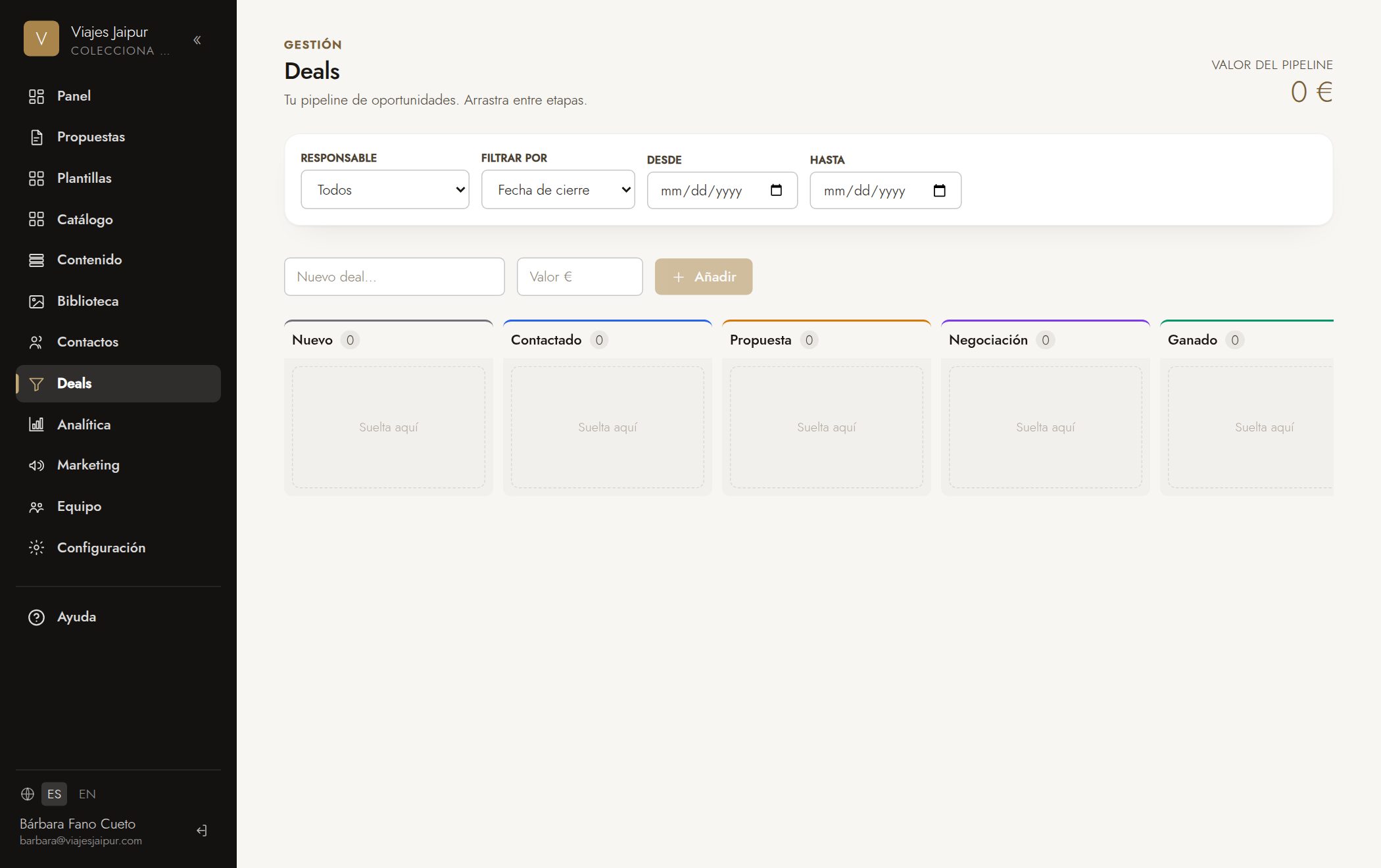
Tip: «Proposal viewed» is a key stage: it tells you the client already opened the proposal and is still deciding — the best time to call. Use the quick filters at the top (e.g. «this month») to review your forecast closes.