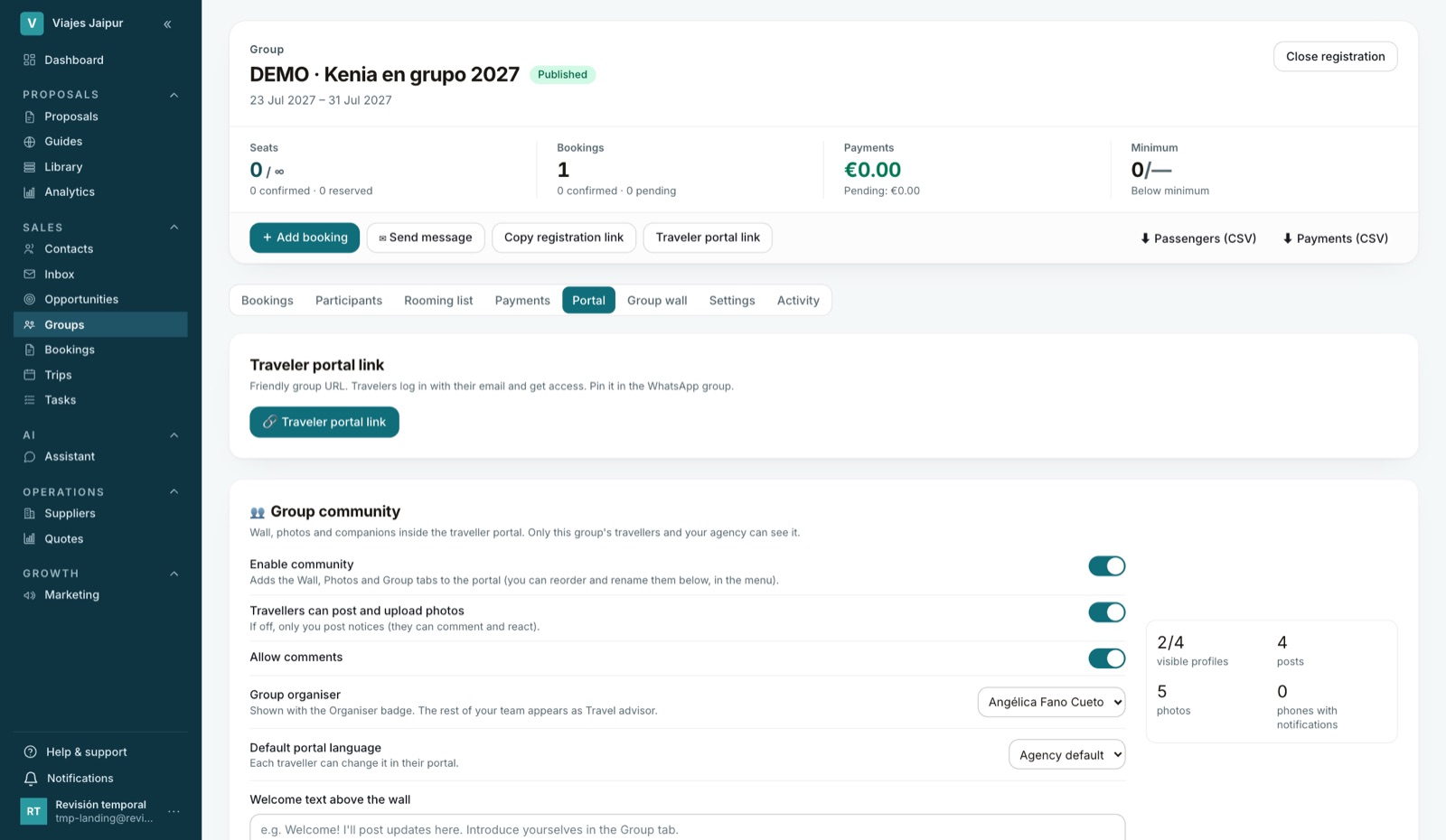
The social portal turns a group's traveler portal into a small private space for the trip: travelers introduce themselves, post, share trip photos in good quality and get your notices with your photo. Only that group's participants and your agency can see it; nothing is public or shown on Google. It's optional and set per group: it starts switched off, and you can turn it on or off at any time in the group's «Portal» tab → «Group community». If you turn it off, the Wall, Photos and Group tabs disappear from the travelers' portal, but nothing that was posted is deleted: it comes back if you turn it on again.
- 1In the group, open the «Portal» tab and, under «Group community», switch on «Enable community». Each traveler's portal will show three new tabs: Wall, Photos and Group (you can reorder, rename or hide them in the portal menu).
- 2The first time a traveller opens the portal on their phone, we guide them through 3 steps in order: install the trip app on their home screen, introduce themselves to the group (profile) and turn on notifications. On iPhone, notifications are requested when they open the trip from its icon, as Apple only allows them that way. Anything left shows in a small card with «Continue».
- 3In «Portal → Travellers' first steps» you see, for each person, their last visit, whether they have the app installed (iPhone or Android), their profile and whether they'll get phone notifications. Filter by «Never opened it», «No notifications», «No profile» or «No app» and click «Remind by email» to write only to them.
- 4Each traveler creates their profile in «Group» (photo, display name, a short introduction and their city). They only appear in the companions list if they tick «Show me to my travel companions».
- 5On the Wall they can post text and up to 10 photos, comment, react (❤️ 👏 😍 😂 🙌) and @mention visible companions or the organiser. Whoever is mentioned or gets a comment on their post receives a phone notification.
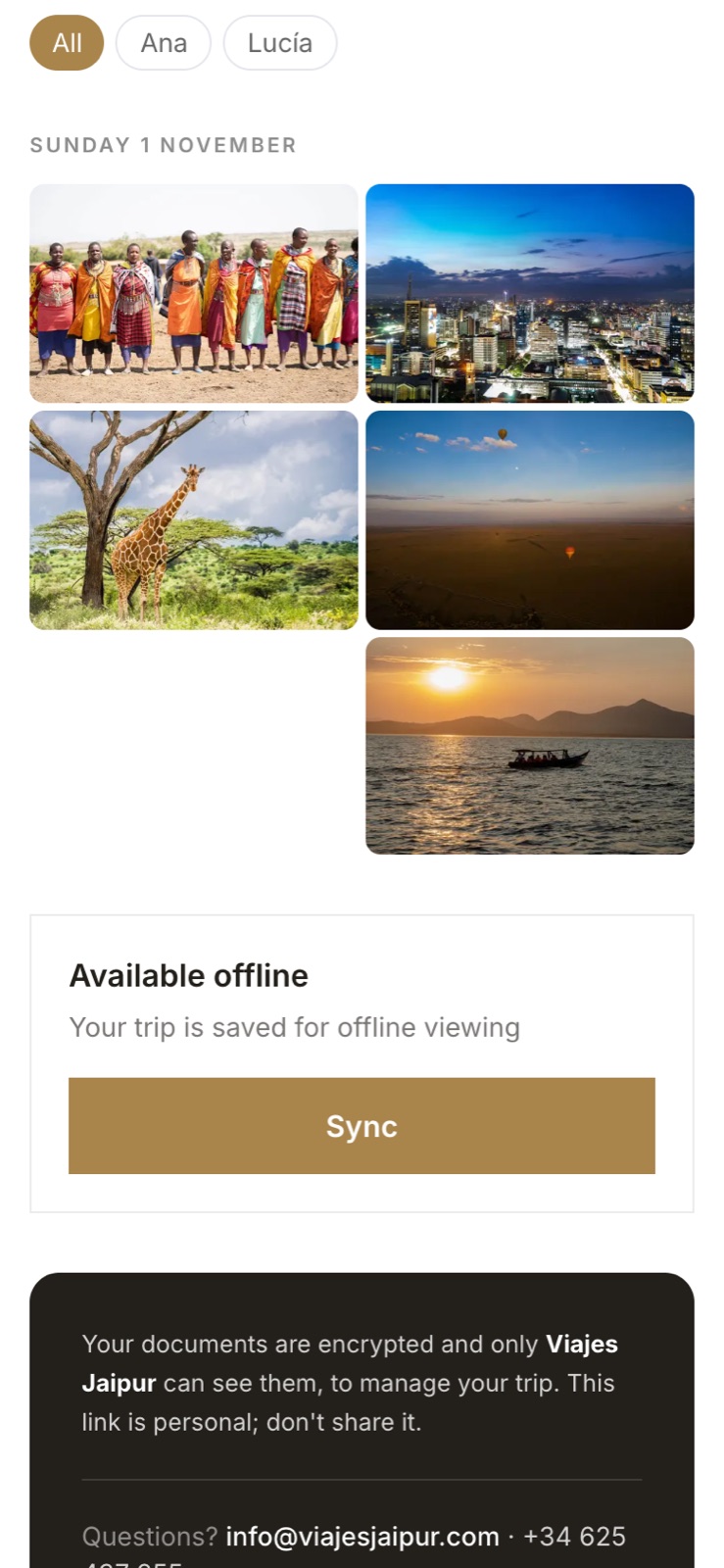
- 6«Photos» gathers all the group's photos by day; they can be viewed full screen and the original downloaded.
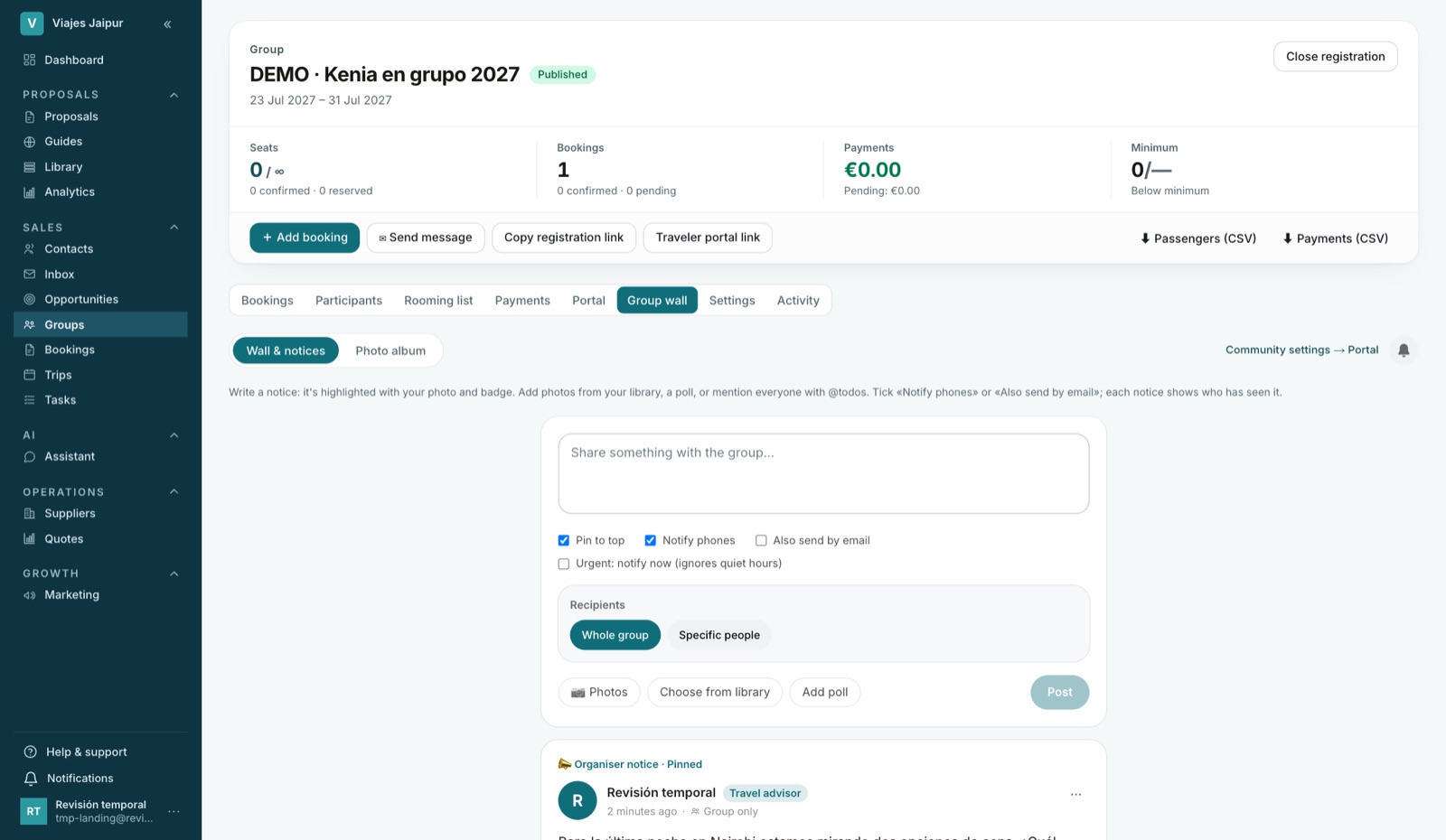
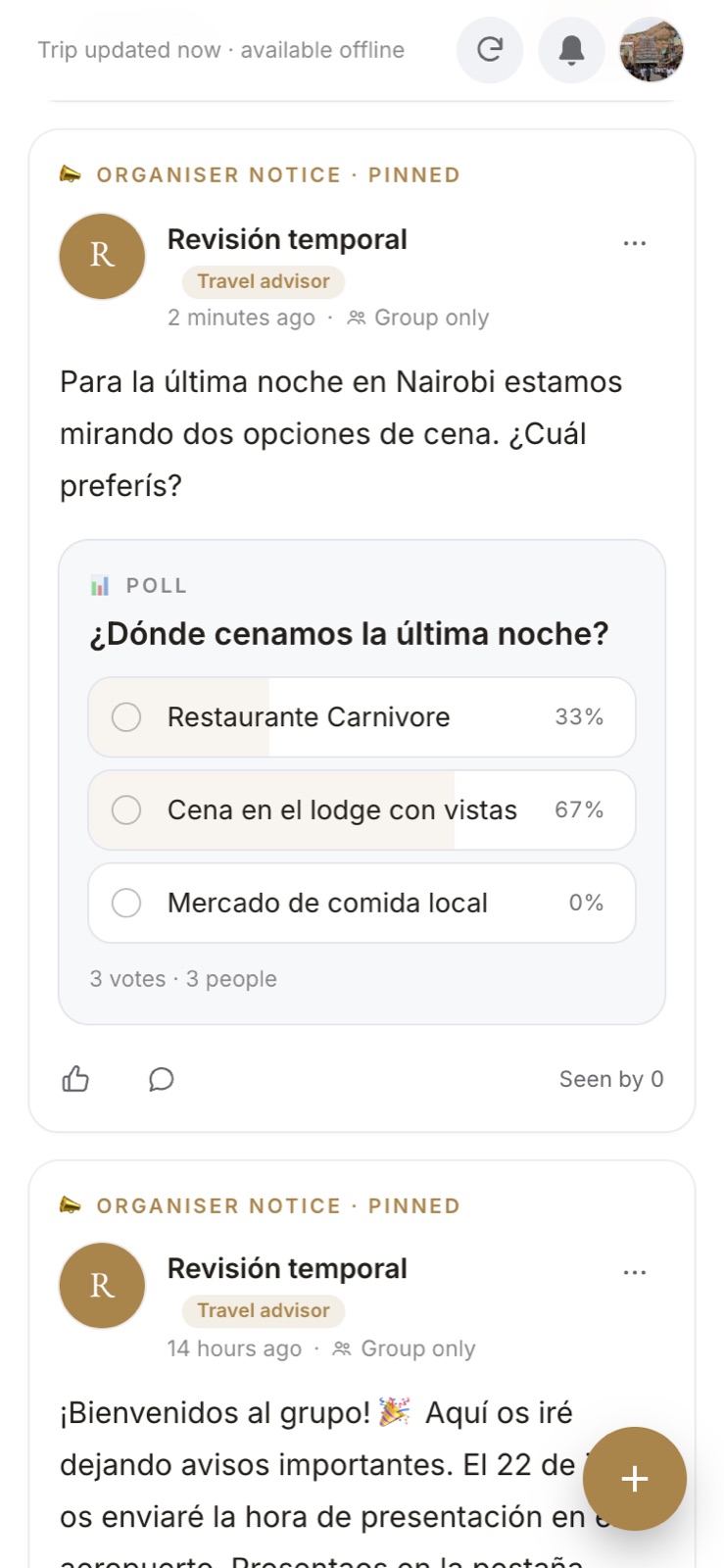
- 7To post a notice, write on the wall from your panel: it shows highlighted with your photo. You can pin it, send it as a push notification and also by email. «Who has seen it» tells you who has read it and who hasn't; travelers only see the number («Seen by N»).
- 8You can hide or delete any post, comment or photo, and turn off traveler posts or comments.
- 9Everyone can edit or delete their own content («⋯» menu), reply to a comment in a thread, paste a YouTube link so the video plays inside the wall and copy a post's link to share it with the group. Photos can also be liked and commented on.
- 10Polls: from your panel create a poll on the wall (question and options); travelers vote from the portal and you see the results and who hasn't voted yet.
- 11Mention the whole group with @todos (only your agency's team can use it; it notifies every traveler).
- 12Your team appears with their nickname and a badge (Organiser or Travel advisor) so travelers know who is writing. The traveler's profile is saved on their contact record and reused in their next groups (choosing in each group whether it's shown).
- 13Each traveler chooses their language (7 languages) and can tap «Translate» on any post or comment written in another language.
- 14Photos from your Library can be posted on the wall, and photos from the group album can be saved to your Library for future proposals.
- 15Notices for specific people: under «Recipients» choose «Specific people» (with filters such as «no profile», «haven't seen the last notice» or «notifications on») and decide whether the notice is visible only to them on the wall or to the whole group while notifying only them. From «Who has seen it» and from poll results you can «Remind» just those who are missing.
- 16In «Portal → Notifications» you choose which notifications travelers get and how (bell, phone, email), quiet hours in the group's time zone (phone notifications are sent when they end; tick «Urgent: notify now» on a notice to skip them), an hourly phone notification limit, a daily email summary for anyone who hasn't visited for a day, and who in your team is notified when travelers post or comment. Below you'll find the log of the latest sends and how many phones have notifications on.
Tip: Phone notifications work once the traveler taps «Turn on notifications on this phone» in the Group tab (best if they've installed the portal on their home screen). Each traveler can mute mentions, replies, comments and likes in «My profile → Notifications»; organiser notices always reach them. Photos are stored without GPS location for privacy.